Settings → Organization Settings
The Organization Settings module serves as the administrative backbone of the CarbonX platform, allowing users — particularly system administrators and sustainability officers — to configure and manage the organization’s core data, operational structure, and performance indicators.
Written By CarbonX Registry
Last updated 12 months ago
This module centralizes the foundational information that powers emissions calculations, reporting, and reduction tracking, ensuring that every analytical and sustainability function across CarbonX is based on consistent, verified, and up-to-date organizational data.
It acts as the single source of truth for all company-level parameters, enabling seamless data linkage across modules such as Emission Management, Reporting, Performance Metrics, and Reduction Plans.
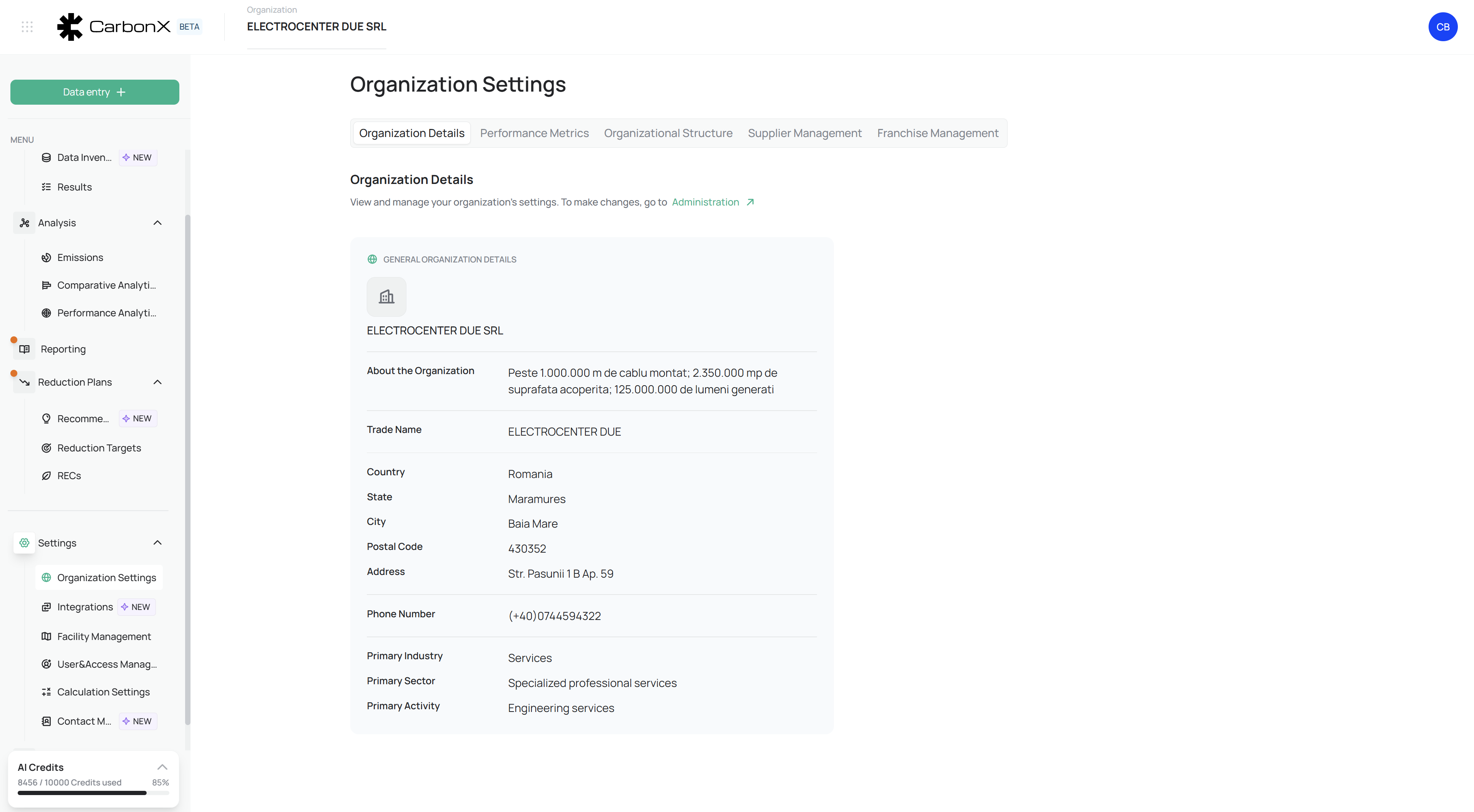
Image: Organization Settings interface showing company profile information, performance metrics configuration, and integrated supplier and franchise management tabs supporting data consistency and traceability across all modules.
1. Overview
The Organization Settings section provides a centralized hub for managing all structural and contextual elements that define how your company is represented within the CarbonX ecosystem.
It allows users to:
Maintain accurate organization and facility-level information.
Define and update key operational performance metrics used in intensity calculations.
Record and manage subsidiaries, investments, and partnership relationships.
Build and maintain supplier and franchise databases to extend emissions accounting boundaries across the full value chain.
Ensure consistency and traceability across all analytical modules and sustainability reports.
The module is divided into five key tabs:
Organization DetailsPerformance MetricsOrganizational StructureSupplier ManagementFranchise Management
Each tab manages a specific data layer that feeds into multiple CarbonX systems for integrated carbon accounting, benchmarking, and disclosure readiness.
2. Organization Details
The Organization Details tab stores your company’s core identifying and descriptive information, forming the foundation for all reporting and emissions analysis within the platform.

Displayed Fields:
Organization Name & Trade Name
Description / About the Organization
Country, State, City, Postal Code, and Address
Phone Number & Contact Information
Primary Industry, Sector, and Activity Type
This section helps contextualize your sustainability and emissions data, ensuring that all reports and dashboards reference the correct organizational identity.
Example:
ELECTROCENTER DUE SRL — Engineering and specialized professional services firm operating across 2.35 million m², managing over 1 million meters of installed cable, and producing 125 million lumens of light annually.
Tip:
Administrative edits or governance-related updates can be made through the Administration link, which provides controlled access and ensures data integrity across multiple users.
3. Performance Metrics
The Performance Metrics tab manages all business indicators used for emissions intensity and benchmarking calculations.
It ensures that sustainability insights are grounded in real-world performance data, such as production, headcount, or financial metrics.

Purpose:
To define and maintain up-to-date variables (e.g., revenue, workforce, production volume) that directly influence:
Emission Intensity KPIs (e.g., tCO₂e per million USD revenue).
Comparative Analytics (cross-year or cross-facility performance).
Sustainability Reporting (integration into ESG disclosures).
Key Functions:
Add New Metric: Opens an input panel for adding performance data.
Metric Type: Choose from options such as Turnover, Number of Employees, Operational Hours, or Production Volume.
Unit of Measurement: Define the unit (e.g., USD, Persons, Hours, Tons).
Year: Specify the reporting period.
Value: Input the numeric value corresponding to that metric.
All metrics appear in the Performance Overview Table and synchronize automatically with:
Performance Metrics Module (for emissions intensity analysis).
Comparative Analytics (for efficiency benchmarking).
Reporting (for inclusion in board-level and ESG reports).
4. Organizational Structure
The Organizational Structure tab defines the relationships between the parent company, subsidiaries, and affiliated entities — ensuring accurate boundary setting for emissions allocation under GHG accounting standards.

Purpose:
To support corporate boundary management in accordance with the GHG Protocol, using approaches such as:
Equity Share Approach (based on ownership percentage).
Operational Control Approach (based on management authority).
Features:
Add Company: Opens a Create Organization Data form.
Organization Name
Year
Investment (%)
Type of Partnership: Equity, Joint Venture, Subsidiary, or Associate Company.
Example Workflow:
If your organization owns 60% of a joint venture, you can record that share in the system, allowing emission allocations to reflect proportional ownership in emission inventories.
Benefits:
Enables multi-entity emissions tracking.
Ensures consolidated and equity-based emission reports.
Facilitates compliance with multi-national reporting structures.
5. Supplier Management
The Supplier Management tab is one of the most operationally significant areas of the Organization Settings. It supports Scope 3 emissions tracking, supplier engagement, and supply chain transparency.

Purpose:
To maintain a live database of suppliers and partners, ensuring that upstream and downstream emissions are captured accurately within the organization’s GHG boundaries.
Key Features:
Add Supplier: Opens a data entry form for individual supplier registration.
Import Supplier (CSV): Bulk upload suppliers using a standard CSV template for faster onboarding.
Supplier Table Includes:
Add New Supplier Form Fields:
Supplier Name
Contact Name and Email
Phone Number
Country and City
Industry or Activity Type
Tax Number / Company ID
Website (optional)
Supplier Tags (for Scope 3 categorization or filtering)
Example Use Case:
A company imports 20 suppliers across various manufacturing categories. Each supplier’s activity data can then be linked to Scope 3 categories like Purchased Goods and Services or Upstream Transportation, allowing precise emission tracking.
Benefits:
Enables supplier engagement through data-sharing invitations.
Supports compliance with Scope 3 GHG reporting requirements.
Facilitates supplier benchmarking and low-carbon procurement strategies.
6. Franchise Management
The Franchise Management tab helps organizations operating under a shared brand or licensing model to include franchise-level emissions in their overall sustainability assessment.
Purpose:
To extend emission tracking and reporting beyond direct corporate operations, encompassing all franchise partners that contribute to the value chain footprint.
Key Features:
Add Franchise: Opens a form to register new franchise entities.
Franchise Name
Facility / Location
Country / Region
Operational Type (Retail, Service, Manufacturing, etc.)
Contact Details (optional)
Once saved, franchises appear in a management table with options to Edit, View, or Delete records.
Example:
A retail brand with 120 franchises across Europe uses this section to register each partner, ensuring that downstream electricity and waste emissions are captured for Scope 3 inventory.
Benefits:
Supports inclusion of indirect operational footprints in corporate reports.
Enables consistent data collection and carbon tracking for franchise partners.
Strengthens ESG disclosure coverage for multi-brand or distributed business models.
7. Integration with Other Modules
Data stored and maintained in Organization Settings is foundational to every analytical and reporting process within CarbonX.
Cross-Module Integrations:
Emission Management:
Facility, supplier, and franchise data feed into emissions calculations and scope allocations.Performance Metrics:
Operational and financial indicators support intensity-based performance tracking.Supplier Management:
Feeds Scope 3 data pipelines for supplier engagement and emissions modeling.Reporting:
Automatically populates organization data, facilities, and partner details into AI-generated audit-ready reports.Reduction Targets:
Provides the organizational baseline for aligning targets with facility- and supply-chain-level reductions.
This interconnected data model ensures that every report, calculation, and metric across CarbonX is consistent, traceable, and audit-ready — supporting both compliance and corporate sustainability governance.
8. Best Practices
Regularly review and update organizational details to ensure accurate alignment with legal and operational changes.
Maintain current performance metrics for reliable emission intensity reporting.
Keep supplier and franchise lists synchronized with active business relationships.
Use organizational structure data to correctly define emission boundaries for consolidated reporting.
Restrict editing permissions to administrators to maintain governance and data integrity.
Still need help? Ask the team