Settings → Calculation Settings
The Calculation Settings module is the cornerstone of CarbonX’s emissions computation framework — providing administrators with full control over how greenhouse gas (GHG) emissions are calculated, standardized, and validated across the organization.
Written By CarbonX Registry
Last updated 12 months ago
It serves as the configuration hub for all methodological parameters that influence emission results — including GHG profiles, emission factors, uncertainty levels, and base year definitions. By defining these core rules, organizations can ensure consistent, transparent, and auditable carbon accounting aligned with global standards such as the GHG Protocol, ISO 14064, and IPCC Guidelines.
All settings within this module automatically propagate throughout CarbonX’s connected modules — including Emission Management, Reporting, Comparative Analytics, and Reduction Plans — ensuring uniform data handling and reporting accuracy.

Image: Calculation Settings interface showing GHG profile templates, emission factor customization panel, uncertainty configuration, and base year setup — ensuring consistent, auditable emissions methodologies across the organization.
1. Overview
The Calculation Settings module is designed to maintain methodological integrity across your entire sustainability workflow.
Administrators can configure default calculation behaviors, customize emission factor libraries, and define how uncertainty and base years are applied across all facilities and scopes.
Purpose:
Ensure all GHG calculations follow a consistent and documented methodology.
Enable auditable and reproducible emission results.
Allow flexibility for local or organization-specific emission factors.
Define a base year to track decarbonization progress over time.
Main Tabs:
GHG Profile ManagementEF Customization Management(Optional) Fuel PropertiesUncertainty SettingsBase Year
2. GHG Profile Management
The GHG Profile Management section allows administrators to define which emission categories apply to each facility within the organization’s GHG accounting structure.

Profiles act as calculation templates — automatically applied to emission data entry and reporting to ensure scope and category consistency across sites and reporting cycles.
Key Features:
Create, edit, and save custom GHG category templates.
Apply Scopes 1, 2, and 3 consistently across multiple facilities.
Guarantee that all relevant sources (fuel use, transport, waste, purchased goods, etc.) are included in reporting.
Default Example (2024 Template):
Scope 1: Stationary Combustion, Mobile Combustion, Fugitive Emissions
Scope 2: Purchased Electricity, Heat and Steam
Scope 3: Purchased Goods & Services, Capital Goods, Fuel & Energy-Related Activities, Upstream Transportation, Waste Generated in Operations, Business Travel, Employee Commuting
How It Works:
Users can click Customize to edit or add emission categories.
After modifications, click Save GHG Profile to store the new configuration as a reusable template.
These profiles ensure every facility applies the same reporting structure — improving comparability and preventing missing categories in consolidated reports.
Use Case Example:
A global organization with multiple facilities creates regional GHG profiles — e.g., “EU Manufacturing Template” and “North America Office Template” — ensuring each site uses relevant emission sources while maintaining global reporting uniformity.
3. EF Customization Management (Emission Factor Management)
The EF Customization Management section provides full flexibility in defining and managing Emission Factors (EFs) — the conversion coefficients that transform activity data (e.g., liters of fuel, kWh of energy) into CO₂e emissions.

This functionality is essential when default global databases (such as DEFRA, IPCC, or EPA) do not fully represent an organization’s regional, industry-specific, or process-level data.
Purpose:
Customize emission factors to match local grid intensities, specific materials, or company-specific processes.
Enhance the accuracy and relevance of emission calculations.
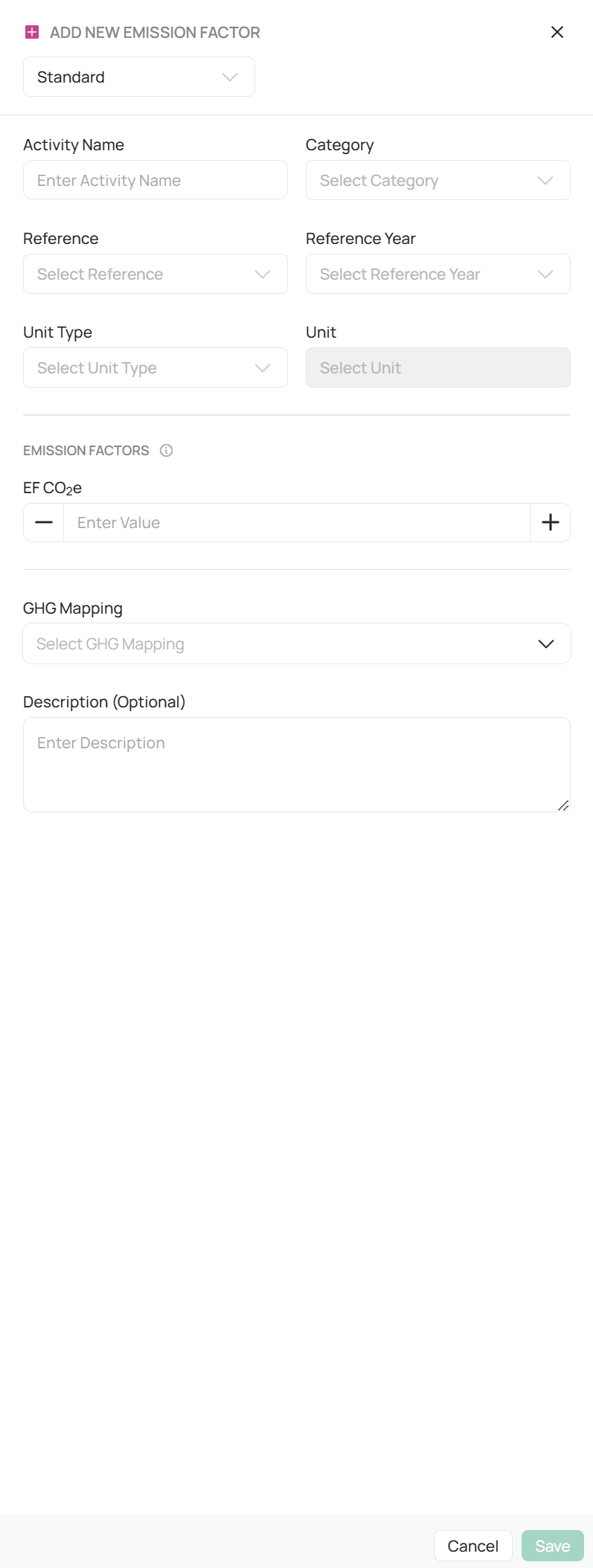
Steps to Create a New Emission Factor:
Click Create New Emission Factor to open the input form.
Fill in the following fields:
Required Fields:
Activity Name: Descriptive name of the emission activity (e.g., Electricity – Romania Grid 2024).
Category: Select the applicable category (e.g., Electricity, Transport, Waste).
Reference: Indicate the source document, study, or dataset.
Reference Year: Year the data was published or collected.
Unit Type and Unit: Define the measurement basis (e.g., kWh, Liter, Ton, etc.).
EF CO₂e Value: Input the emission factor in kg CO₂e per unit.
GHG Mapping: Associate the factor with a GHG inventory category.
Optional Fields:
Description: Add methodological notes, region, or calculation method for transparency.
Click Save to store the emission factor. It will automatically appear in your organization’s EF Library.
Integration:
Customized factors become selectable across all relevant emission sources and automatically integrate with GHG Profile Management and Emission Management modules.
Example Use Case:
A company operating in Romania replaces the default European electricity emission factor with a national value (0.222 kg CO₂e/kWh), sourced from local grid data published by the national energy agency.
4. Uncertainty Settings
The Uncertainty Settings tab allows administrators to define data confidence ranges for both emission factors and activity data.
This feature supports transparent and auditable GHG accounting by quantifying the level of uncertainty in reported values.

Purpose:
To provide confidence intervals and improve understanding of data quality — a critical component in third-party verification and audit readiness.
Key Features:
Manage uncertainty values by facility and scope (1, 2, or 3).
Display all emission sources and their associated uncertainty levels.
Edit uncertainty values individually or in batch.
Automatically apply uncertainty to emission calculations and audit reports.
Parameters Defined:
Emission Factor Uncertainty (%): Reflects reliability of the emission factor source (e.g., scientific accuracy or age of data).
Activity Data Uncertainty (%): Represents the accuracy of input data (e.g., metered vs. estimated fuel use).
Example:
This combined uncertainty (root-sum-square method) helps assess the overall confidence in reported emissions.
Benefits:
Supports Tier Quality Assessment under the GHG Protocol.
Provides quantitative input for audit verification and data quality dashboards.
Allows targeted improvements by identifying data sources with high uncertainty.
5. Base Year Settings
The Base Year serves as the reference point for measuring emission reductions and tracking performance progress over time.
All future emission results, reduction targets, and reports are compared against this foundational year.

Purpose:
To establish a consistent benchmark that allows for year-over-year comparison and validation of sustainability achievements.
Features:
Select a Base Year from the available reporting years.
The system enforces one active base year per organization to maintain data integrity.
Automatically notifies users if a verified carbon footprint already exists for the chosen year.
Displays a confirmation message once the base year is successfully set.
Once set, the base year anchors all progress tracking and is used in:
Reduction Targets: Calculating percentage reductions over time.
Reporting: Displaying historical trend comparisons.
Performance Analytics: Monitoring improvement against initial baselines.
Best Practice:
Once the base year is verified and published, it should be locked to prevent retroactive changes that could disrupt historical comparability.
6. Interconnected Functionality
The Calculation Settings module directly influences every emissions-related function across CarbonX. Any configuration updates here are instantly propagated to all analytical dashboards and reporting tools.
Key Interconnections:
Emission Management:
Applies GHG profiles and emission factors for accurate calculation of activity data.Reporting:
Ensures that all reports follow the same methodological framework and reflect updated EFs and uncertainties.Reduction Targets:
Uses the Base Year to define progress baselines and calculate reduction percentages.Comparative Analytics:
Incorporates uncertainty values and customized factors into performance comparisons and intensity ratios.
Result:
This interconnectivity ensures that data remains methodologically consistent, scientifically accurate, and fully traceable throughout all stages of the carbon management workflow.
7. Best Practices
✅ Regularly update emission factors using the latest IPCC, DEFRA, or regional datasets.
✅ Standardize GHG Profiles across facilities to maintain comparability in multi-site organizations.
✅ Document custom emission factors with references and justifications for audit transparency.
✅ Define clear uncertainty values — especially for Scope 3 categories, where data quality is most variable.
✅ Lock the base year once verified to preserve the consistency of trend analyses and reduction tracking.
✅ Review calculation templates annually to ensure alignment with evolving standards and methodologies.
Still need help? Ask the team